Don’t panic if WeChat files expire: QNAP Assistant directly stores chat files in NAS


“The file has expired or has been cleaned up.”
This line is probably the small text in WeChat that makes your heart sink the most. Last week I helped someone look for a procurement contract from two years ago, found that chat window, and opened it to see exactly this line—there had been no chance to save it separately at the time, and now it can’t be recovered.
The old way was to first save the file to the phone, then open a client like Qfile and upload it to the NAS. Both steps had to be done manually; photos went into the album, documents into the download directory, and the phone became a mess—yet when you actually needed them, you still couldn’t find them.
A WeChat mini program released by QNAP in mid-October compressed this process into one step. It is not called Qfile, and you don’t need to install an App; its name is just “QNAP Assistant”.
First, let’s be clear about who made this and when it launched
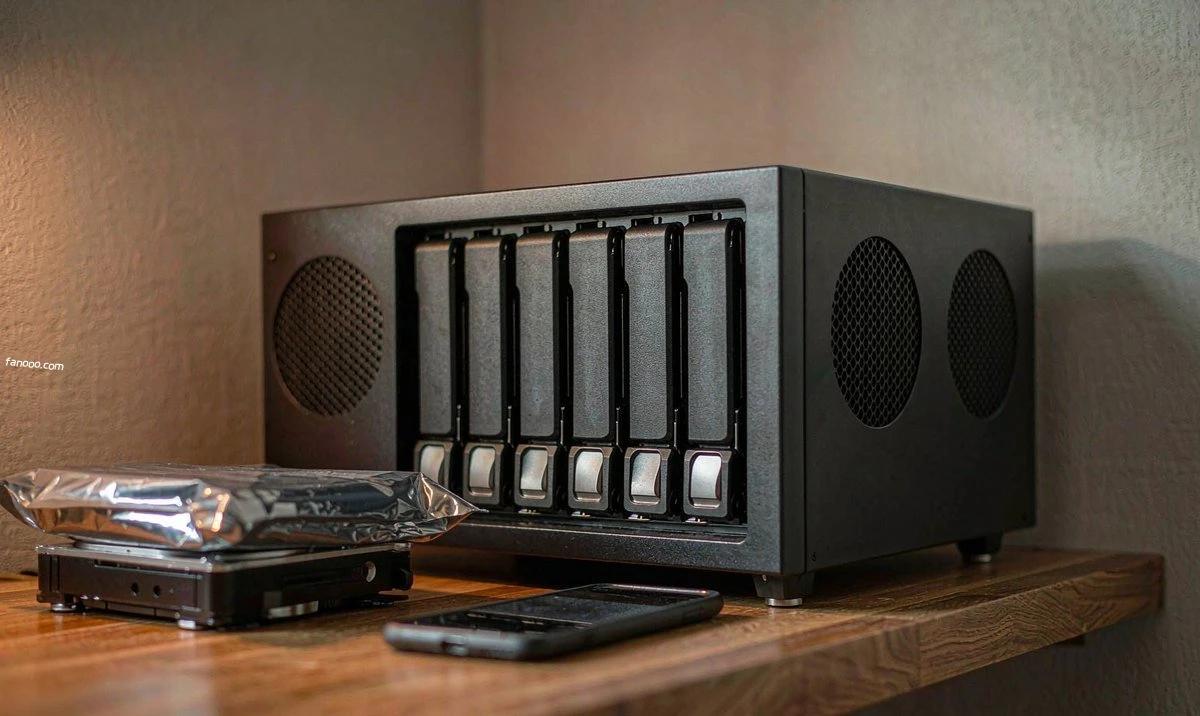
According to SMZDM’s early-November hands-on article, QNAP wasin mid-October 2026making this official mini program available to ordinary users. Around November 3, Tencent News, Juchaozhi, and several other media outlets again released a batch of accompanying hands-on tests: one Qu605 host, plus QTS 6.1, plus the unified mobile entry point QuONE, plus this mini program—all describing the same setup.
So this is not some wild tool built by a third-party developer; it is a gap the vendor itself stepped in to fill. The problem it aims to solve is also not “backup” but something more specific: how do those photos, videos, and documents in WeChat chats land on your own hard drive?
Three steps, without installing any App
The first use requires binding an account once; after that it is two steps.
- Authorization: Log in to myqnapcloud.cn in a browser, check “Allow WeChat login” under account binding, scan the QR code with WeChat, then verify the authorization code in the browser.
- Log in: Search for “QNAP Assistant” in WeChat, log in with your QNAP ID, and the mini program will automatically recognize the machine already bound to your account.
- Save files: Choose a destination directory (by default it creates a “微信备份” under home; you can also create one yourself in Public), click “Start Backup”, and it will bring up the WeChat chat list, where both one-on-one and group chats can be selected. Tap into any conversation; the images, short videos, and documents received in it will be listed by time, with filters at the top for “Images only / Videos only / Files only”, and then you can select them in batches.
Two switches are worth noting. One is “Auto-create date folder”; each upload is grouped into a folder by the current date, so when you later need to find a contract from a certain day, you don’t have to dig around. The other is “Allow mobile network”; for files of tens to hundreds of MB, it’s better to wait for WiFi rather than burn through your own data.
Uploads show progress, can be paused and resumed, and failures caused by a brief network hiccup are automatically retried. The same mini program can also be opened in WeChat for PC, which is more comfortable for batch-saving things than checking items on a phone.
Four boundaries: see them clearly before you start.
This is handy, but it can do less than many people think. Let's be clear upfront so you don't waste effort.
- It backs up files, not chat history.Migrating an entire chat to a new phone is not possible; you still have to use WeChat's built-in migration feature.
- It is manually initiated, not automatically synced in the background.If you don't take action, it won't run by itself. People expecting "automatically enter NAS upon receipt" will be disappointed.
- During backup, the mini program must stay in the foreground.If you switch away or swipe it away, the task stops. This is not QNAP being lazy; it is a limitation of the mini program's runtime mechanism—WeChat does not grant permission for background transfer.
- It also cannot rescue files that have expired or already been cleaned up.This is the most important point—it is not a "recovery tool" but a way to "save it while it is still there."
There is also a regional restriction: according to the hands-on article, it currently targets use in mainland China and requires a machine that meets regional requirements and a China-region account (.CN). Readers using international accounts should not get their hopes up for now.
The connection method is worth mentioning: it uses myQNAPcloud's relay service, so you can connect even without a public IP at home. That is, you don't need to mess with reverse tunnel / port forwarding first for this feature. If you really want to set up remote access, I have done the math on the differences among several options in thisRemote Access Comparisonarticle; you can read that article first before deciding whether to bother.
As for speed, don't expect too much.
In the hands-on test by Juchaozhi on November 3, a figure was given: relay transfer speed is between 200KB/s and 1.5MB/s, and is not very stable. Another hands-on article said that transferring a class group's photos and a few documents took about two minutes.
Converting 1.5MB/s, that's around 90MB per minute. Transferring twenty or thirty files totaling several hundred MB at a time is tolerable; if you want to move years of chat files in one go, it will take hours, and you can't switch away in the middle.
This is not surprising. The bandwidth for relay services is paid for by the vendor itself, and no one can guarantee it. Synology's QuickConnect follows the same approach: it is truly convenient, and it is also true that speed is not guaranteed; I covered this in theQuickConnect articleI broke down why it is slow before. The same logic still holds here: relay is “usable,” not “fast.”
After it is stored, there is also a handy bonus
Once files enter the NAS, they are not just “stored.” According to the hands-on draft, images backed up from WeChat can be recognized and indexed by QuMagie's AI album, classified by face and location, and managed together with family photos backed up from your phone album.
Also, select it in File Station or QuONE to directly generate a share link with password and expiry. This is quite practical for people who often need to send assets to colleagues—the link can be revoked, better than dropping original images in a group chat.
On the hardware side: what level is the Qu605 at
Most media hands-on tests of this setup were done on the Qu605; I'll also note its fundamentals, because running QTS 6.1 in the background consumes resources.
- The processor is Intel N150, four cores and four threads, up to 3.6GHz, TDP 6W. With this power consumption running year-round, electricity cost is not very noticeable.
- Memory comes standard as a single 16GB DDR5 4800 module and supports In-Band ECC.
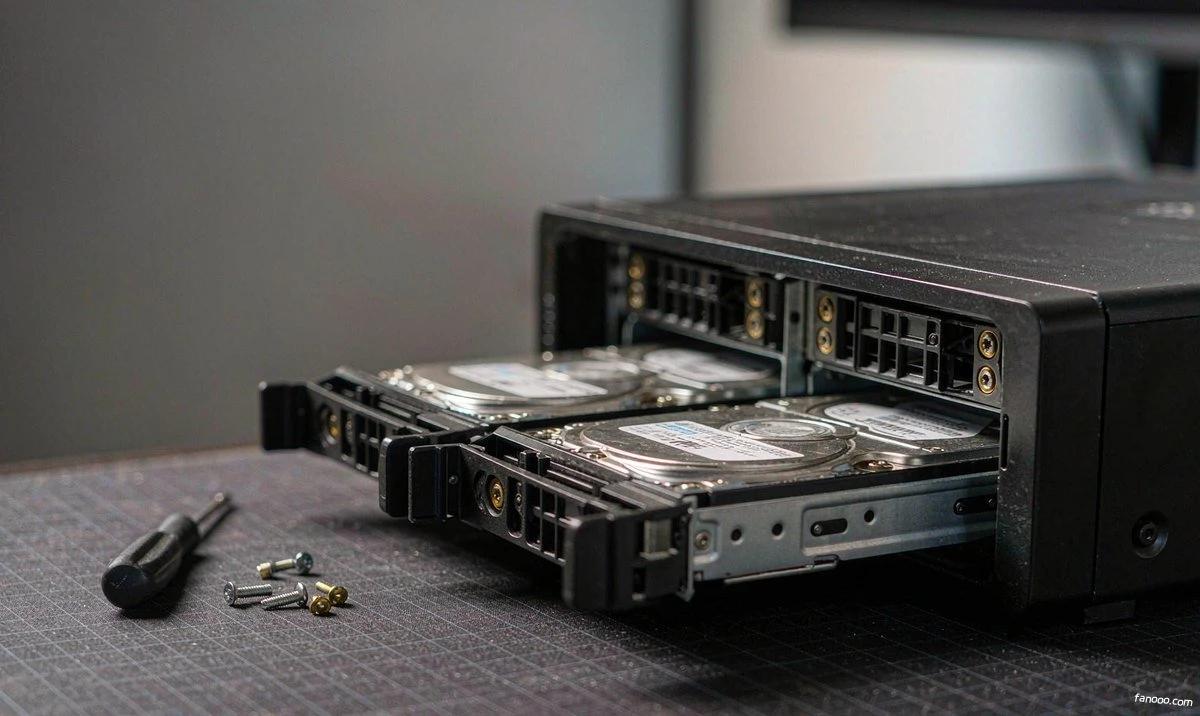
- 6 hot-swappable 3.5/2.5-inch SATA bays, plus 2 separate M.2 2280 NVMe slots—these do not take up drive bays, can be configured as RAID1 for cache, or used to create a separate storage pool.
- Dual 2.5GbE ports, supporting link aggregation and SMB Multichannel; 1 HDMI; 8GB flash for dual-boot protection; a front 10Gbps USB 3.2 Gen2 Type-C plus a physical one-touch copy button.
How to use those two M.2 slots deserves separate thought: as cache, or as a separate high-speed storage pool, depends on whether what you need to read is a large number of small files or one large file; I, inthe storage tiering article,broke down this trade-off, so I won't repeat it here.
Capacity here has two numbers that are easy to mix up. The JD Self-operated product page says the whole-machine maximum is 208TB, calculated as 32TB per drive × 6 plus two 8TB M.2; the media hands-on draft says 196TB, calculated as 30TB per drive. Both numbers are correct; the difference is only how large a single drive you assume can be bought.
On price, on November 4 the JD Self-operated diskless version was listed at 2998.8 元; it will move during Double 11, so refer to the official current price.
But there is one item not written in the official spec sheet that is more worth looking at than what is written:It has no PCIe expansion slot and does not support 10GbE expansion cardsThat is to say, the network ceiling of this six-bay machine is 2.5G; if you want 10GbE, you have to change models from the start. Six bays with 2.5G is not unusable—a mechanical drive array reaching 2.5G is already not easy—but if you buy it for future all-flash or a 10GbE LAN, this path is blocked at the hardware level.
My assessment
First, if you already have a QNAP and your account is also in the China region, this feature is a free bonus and worth enabling. Especially for people who receive files every day in work groups or parent groups, what it saves is not time but the anxiety of “not being able to find it later.” Files stored there can also be indexed by the album; this step is much more comfortable than manual upload with Qfile.
Second, buying a six-bay unit specifically for this feature is not worth it. The 2998 yuan buys bays, N150, and dual 2.5G ports, not this free mini program. Where the two thousand yuan saved by a four-bay model at the same price actually comes from, I in this articleThe QNAP four-bay mathhave worked it out, so you can compare first. The mini program can run just the same on your existing machine; the only prerequisite is that the account and region match.
Third, don't treat it as a backup solution. It fills gaps: when you think of something or see something, save it before it expires. Real backup is another set of things—automatic backup of phone photo albums, scheduled synchronization of computers, plus an off-device copy; it handles none of these. I have seen too many people treat "saved to NAS" as "safe"; in fact it is just a single copy in a different place.
Finally, a note on versions. QTS 6.1 is currently still in public beta, and the mobile QuONE is also in internal beta testing; the vendor has not given a release time for the official version. The batch of hands-on articles in early November also mentioned that this version of QuONE does not yet have Qsync, and the vendor says it will be added in a later version; video playback also lacks real-time transcoding and subtitles. It is enough for daily use, but don't upgrade a production machine to the public beta just to try it out—what's on this machine is your data, not a test field. As for "whether upgrading the system can also patch security along the way," that's another matter; issues like exposure to the public internet and weak passwords have to be dealt with by yourself first whether you upgrade or not.
By the way, what truly deserves attention about this thing is not on the spec sheet. NAS vendors have been competing over bays, network ports, and how many Docker containers can run, but what really blocks users is often "how do things get in." WeChat is the largest file entry point for Chinese users; whoever opens this path first will have one less reason to be complained about. This time the fix isn't pretty—it requires foreground operation, is slow, and only backs up files—but the direction is right.
Advertisement · This article contains promotional links
To get hands-on, first get a machine
The following commands and services all require a server that stays online long-term.
Alibaba Cloud server promotion entry →
If you're not sure what configuration to buy, read this first:How to choose a personal cloud server (configuration, bandwidth, renewal price)
If you purchase through this link,I will not charge you any extra fees(the promotional commission is settled by Alibaba Cloud); the price shown on the order page is the actual price paid. Models, prices, and campaign rules are subject to the Alibaba Cloud page; this article does not promise discount levels and does not constitute purchasing advice.
Sources: SMZDM early November 2026 hands-on article ("QNAP Assistant" mini program opened to regular users in mid-October 2026, myqnapcloud enabling "Allow WeChat login" binding process, default storage directory, automatically create time folders, allow mobile network switch, only backs up chat files and not chat history, needs foreground operation, currently aimed at mainland China and China region (.CN) accounts, QuONE does not yet include Qsync and the vendor says it will be added in a later version); JuChaozhi November 3, 2026 hands-on article and NetEase same-source reprint (relay transfer speed 200KB/s~1.5MB/s, upload stops after the mini program is swiped away, Qu605 equipped with Intel N150 quad-core four-thread up to 3.6GHz, TDP 6W, 16GB DDR5 4800 single stick supports In-Band ECC, 6 SATA hot-swap bays plus 2 M.2 2280 NVMe slots, dual 2.5GbE supports link aggregation and SMB Multichannel, front 10Gbps USB 3.2 Gen2 Type-C and one-touch copy button, with 30TB per drive the whole-machine limit is 196TB, price within 3000 yuan during Double 11); Tencent News November 3, 2026 hands-on article (QTS 6.1 interface and QuONE integrate Qfile Pro, QuMagie, Qmanager, Qsirch; actual transfer speed depends on the switch, client, disk read/write capability, and network configuration); JD Self-operated Qu605 product page specifications column (viewed on November 4, 2026: whole-machine limit 208TB=32TB×6+8TB×2, 8GB flash dual boot, no PCIe expansion slot, does not support 10GbE expansion card, net weight 2.52kg, no-drive version listed at 2998.8 yuan); for Synology QuickConnect related notes, see an old article on this site. The parameters and prices in this article are all paraphrased from the above public sources, without conversion and without cross-source merging; specific prices and specifications are subject to the official current-price pages of the manufacturers and platforms. Judgments on "whether it is worth buying" and "whether to upgrade to the public beta" are personal analysis; this article did not conduct hands-on testing of the Qu605 or the mini program.