NAS IPv6 remote access: how to configure ONT, firewall, and DDNS


A few days ago, someone asked me a question: the home broadband has no public IPv4, QuickConnect is painful to use—is buying a relay the only option?
I said don't spend money yet: turn on mobile data, turn off Wi-Fi, paste the NAS's IPv6 address into the browser, and try it. After trying, he replied: why is it so fast.
This is somewhat counterintuitive—while many people are still worrying about a "public IP", the broadband at home has actually already quietly been assigned a public IPv6; it's just that no one has let it out on the router. This article is about the three gates it still has to pass after it's let out: the ONT and router, the firewall, and DDNS.
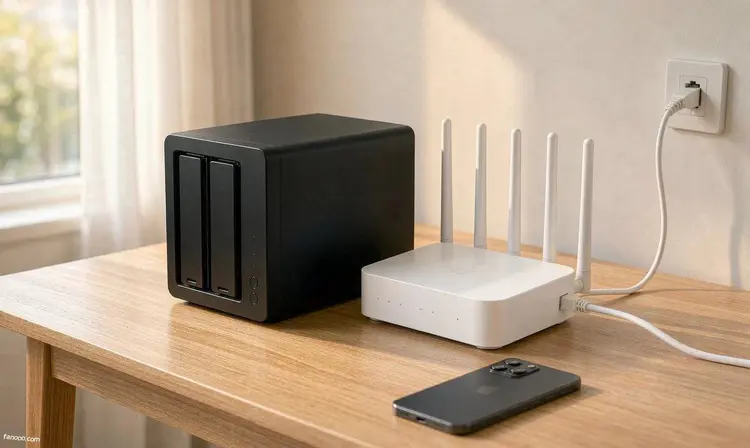
First confirm one thing: your home may already have IPv6.
On July 28, 2026, the 5th China IPv6 Innovation and Development Conference released the China IPv6 Development Report (2026). Two numbers in the report are quite telling: as of December 2025, China's active IPv6 users reached 8.69 亿, accounting for 77.38% of netizens; as of June 2026, the national home gateway IPv6 activation rate was 98.41%, and the IPv6 support rate of operator-customized home routers was 99.12%.
In the same month, the Central Cyberspace Affairs Commission issued the Implementation Plan for Deepening the Technological Innovation and Integrated Application of Internet Protocol Version 6 (IPv6) (2026–2030), which mentions "accelerating the evolution to IPv6 single-stack". Translated for readers, this means: getting a public IPv4 will only become harder in the future; IPv6 is a long-term direction, not a temporary substitute.
So don't rush to judge; do three things first:
- Check whether DSM has obtained an address.In "Control Panel > Network > Network Interface", select the NIC in use, click "Edit", and switch to the IPv6 tab. If this is set to "Auto" and a string of addresses is actually displayed below, this layer is already working.
- Access it once using mobile data.Turn off Wi-Fi and type it into the browser
http://[你的IPv6地址]:5000—note that the address must be wrapped in square brackets; this is how IPv6 is written in a URL, and without brackets it won't open directly. Common domestic carrier prefixes start with 240e, 2408, and 2409 (most often China Telecom, China Unicom, and China Mobile, respectively); refer to what you see yourself. - Confirm that the address is not in a private network range.Addresses starting with fe80 are link-local addresses, usable only on the LAN and don't count; what can serve as a public address is a global unicast address such as 2400::/12.
If all three steps pass, you already have a path much faster than a relay; all that's left is to configure it stably.
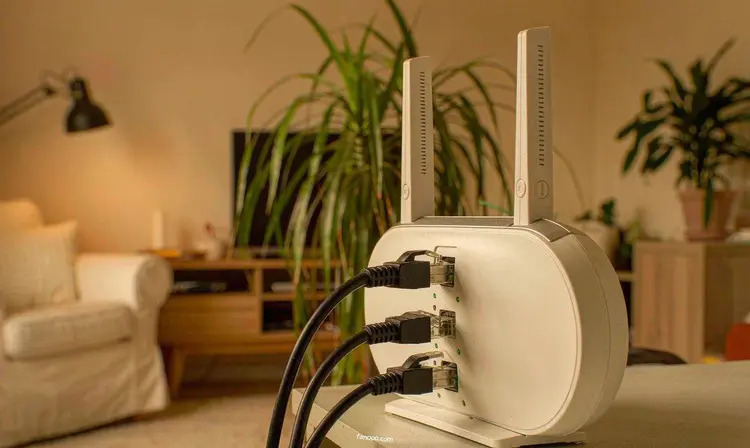
First gate: the ONT and router—someone must first get the prefix.
Home broadband IPv6 has a fundamental difference from IPv4: it doesn't give you one address but a prefix, and then the home router distributes this prefix to each device. The jargon for this prefix is prefix delegation, i.e., PD.
The key lies in "who dials". When the ONT dials by itself (router mode), the prefix is in the ONT's hands, and the router is just a secondary router; in this case you almost inevitably have to dig through the ONT's settings; only when the ONT is changed to bridge mode and your own router dials does the prefix fall into your hands. Synology's DSM help documentation states this very plainly: the DHCP-PD option "requires ISP support and works only in router mode"—only when the NAS dials by itself does it get to request the prefix.
Whether bridging itself is worth doing, I have inthe article on changing the ONT to bridge modedone the math: what it trades for is control, not bandwidth. But for IPv6, control carries more weight than for IPv4, because whoever holds the prefix holds the firewall.
The settings on the router side have no tricks; the hard part is choosing the right type. ASUS's official FAQ lists seven IPv6 connection types it supports: Native, Static IPv6, Passthrough, FLET'S IPv6 Service, and the three tunnels Tunnel 6to4, 6in4, and 6rd. For the vast majority of domestic home broadband, choosing Native is correct; the latter tunnel types are legacy and overseas-operator-specific solutions, and the symptom of choosing wrong is "it looks enabled, but in fact not a single packet can get out", and it is also hard to troubleshoot.
There is one more thing that is especially easy to overlook:The ONT's own IPv6 firewallWith the ONT in router mode, inbound traffic hits the ONT first. No matter how cleanly you allow it on your own router, the packet never got in—nine out of ten cases of “I clearly enabled it but still can't connect” are stuck at this layer.
Second gate: IPv6 has no NAT, so the only door left at the entrance is the firewall
This is the section in the entire article that most needs a change in mindset.
In the IPv4 era, we got used to “no public IP means safe”—NAT conveniently blocked all inbound requests from outside, although that was not originally its job. In IPv6 this buffer does not exist: every device has its own public address, and the router's job is to “forward”, not “hide”. So the firewall is no longer an optional hardening item; it is the only boundary.
Vendors do this by default too. The original wording in ASUS's official FAQ is: by default, the router does not allow all unknown devices to enter the LAN or to enter internal devices through the router, in order to avoid attacks on the router and downstream devices. To allow access, the path is “Firewall > General Settings > IPv6 Firewall” (enabled by default), then create rules in “Inbound Firewall Rules”. This FAQ also gives several hard facts: a maximum of 128 rules; each rule requires service name, Remote IP or CIDR, Local IP, communication port range, and protocol; andthis feature only supports IPv6 addresses; filling in IPv4 is useless。
According to this structure, the correct approach is actually just one sentence: only allow one port on the NAS; do not open “all ports, all sources”.
- In the Remote IP field, fill it in if possible. It means “only allow these sources in,” which is an order of magnitude safer than leaving it blank (any source can knock). The downside is that the address changes after the phone's mobile data switches cell towers, so leave some room.
- For Local IP, enter the NAS's IPv6 address, and for the port, write only the one you actually need to use. DSM's 5000/5001 are management entry points; if possible, do not expose them to the public internet. A common practice is to use a reverse proxy and open only 443, or simply switch to a non-standard port to reduce noise.
- If what you allow is “any source,” then authentication on the NAS side must be fully set up: Auto Block, Account Protection, and two-factor authentication—all three are readily available in DSM.
Synology also has a layer here. The official DSM feature page describes its firewall as a “profile-based IPv4/IPv6 dual architecture”; rules can restrict by IP or port and determine which interface they take effect on. There is one detail explicitly stated in the official help documentation worth remembering:If the NAS accesses the internet through a PPPoE dial-up connection, the relevant firewall rules must be created on the corresponding PPPoE interfaceand rules created on the LAN interface will not take effect.
Third gate: addresses change, so DDNS is needed
The prefix assigned by the ISP has a lease; ONT restarts, line redials, and central office adjustments can all change it. Once the prefix changes, the NAS's entire address changes—this is why “memorizing the IP directly” is more unrealistic on IPv6 than IPv4: you can still memorize an IPv4 address, but no one memorizes that IPv6 string.
The good news is that Synology itself supports it. The original wording on the official DSM feature page is that Synology provides a free DDNS service,this service supports IPv4 and IPv6the SRM (Synology router system) help page states it more absolutely: “Only Synology DDNS supports IPv6 services.”
The path is “Control Panel > External Access > DDNS”; click Add, select Synology as the service provider, fill in a hostname such as xxx.synology.me, and you can also check Let's Encrypt certificate and Heartbeat (offline alert)—these steps are all listed in the official help page.
One thing I have to be honest about: the official help page lists only one “External Address” input field, while many online tutorials say the new version's pop-up is divided into IPv4 and IPv6 columns. I cannot confirm for you what your DSM version looks like; go by the interface on your own machine. If it can fill IPv6, fill IPv6; if the IPv4 column has no public address, disable it.
If you have your own domain, or want it to monitor more frequently, the open-source tool ddns-go is a common choice. The repository is under the MIT license, and the README has a dedicated section for Synology; just copy the steps: install Docker in Package Center → search Registry for ddns-go and download → start jeessy/ddns-go in Image → in Advanced Settings, under Network check “Use the same network as Docker Host” and check auto-restart → open in browser http://群晖IP:9876 configuration. The command-line method also works:
docker run -d --name ddns-go --restart=always --net=host -v /opt/ddns-go:/root jeessy/ddns-goThere are two numbers to note in its default behavior: by default it syncs every 5 minutes, and the page has “Prohibit access from the public network” checked by default. Do not turn off the latter default value; that web page stores your domain registrar key.
While you're at it, also go through that DSM page
DSM's IPv6 settings are under "Control Panel > Network > Network Interface"; select the network interface and click Edit, and under the IPv6 tab there are three types of options (as in the official help page):
- Automatic: generate addresses according to the router's RA advertisements; below it can be further divided into stateless, stateless plus DHCPv6, and stateful (requires enabling a DHCPv6 server and filling in an address pool). For home broadband, this is enough.
- Manual: fill in the IPv6 address, prefix length, and default gateway yourself. In environments where the prefix changes, manual is actually more troublesome.
- Disabledand the transition mechanisms 6in4, 6to4, DHCP-PD, and IPv6 Tunneling. Except for DHCP-PD (used when the NAS dials up itself), the rest are basically fallbacks for networks without native IPv6 and are not needed for home broadband.
Three pitfalls no one tells you about in advance
First, the other side must also have IPv6.This is the most common "configured but won't open." Corporate office networks and the Wi-Fi in many shopping malls and hotels have IPv6 disabled; accessing a domain name with only an IPv6 address from these networks will make requests fail directly, regardless of your configuration. Mobile data currently basically all carries IPv6, so when troubleshooting, try with mobile data first; don't draw conclusions from a specific Wi-Fi.
Second, when the prefix changes, firewall rules silently fail.The "local IP" in that rule in the router is filled with a complete address, and the first half is the prefix given by the ISP. When the prefix changes, this rule points to a nonexistent address—it won't report an error, it just no longer matches, and then you "suddenly can't connect." This is also why the reputation for stability of IPv6 direct connections is not as good as it should be. My own approach is: in environments with frequent prefix changes, rather than fighting with rules, it's better to make authentication solid and open as few ports as possible.
Third, once a domain name is attached to a certificate, it is effectively public.When using Let's Encrypt to issue a certificate, the domain name enters the Certificate Transparency logs (CT); this is a publicly queryable mechanism, not a vulnerability. Combined with the fact that DDNS domain names are themselves easy to guess (such as xxx.synology.me), that's equivalent to writing "I have a NAS at home, and the address is here" on a bulletin board. This doesn't mean it can't be used, but it shows: whether you can connect and whether it should be public are two questions. If it's for your own use, keep it for your own use; don't post the address everywhere.
Another note on ports: for inbound 80 and 443 on home broadband, policies vary by ISP in different regions, and some block them outright. So for daily access, using non-standard ports or going through a reverse proxy is more realistic than obsessing over 80/443. Whether they are actually blocked, test once with mobile data and you'll know; don't trust others' "it works on our side."
Finally, the boundary issue: what's discussed above is all about accessing your own devices. If you want others to access your website or service through this address, that's another matter—providing internet information services to the public involves ICP filing, and home broadband terms of service usually don't allow it. This article does not cover that part, and I don't recommend using home broadband for it.
My judgment: the answer is different for these three types of people
IPv6 at home is stable, and only you and your family use it—It's worth doing, and the cost-effectiveness is absurdly high. One configuration buys a direct connection that does not go through any third-party relay; the speed ceiling is your home broadband's upload; I ran this calculation inthe upload articlewhere I calculated it; the ceiling when you pull files from outside is never the NAS, it's that 30M upload.
Use it three to five times a year, and only want to view a photo occasionally when outside—Don't bother; QuickConnect is enough. Its value is not speed, but "no configuration needed, and it won't leave your own door open." Why it is sometimes slow, I inthe QuickConnect articlebroke down the three-stage connection mechanism; after reading it you'll know whether your situation is worth switching paths.
Want to use home broadband to expose services externally—Not recommended. Exposure surface, filing, and broadband terms—none of the three are on your side. If you really have to do it, rent a proper server; don’t use a home machine as a substitute.
Finally, a suggestion on sequence—this is my conclusion after going through the pitfalls:First get IPv6 working on the NAS so direct connections work over mobile data, then consider DDNS and firewall rules.If the order is reversed, you’ll be troubleshooting the ONT / optical modem, router, and DDNS at the same time, and most likely give up at the second step. The three hurdles above are ordered by “the direction data flows in,” not by difficulty.
If you’re still at the step of “which remote access method should I choose,” first readThe costs of the four optionsthat article; it calculates cost, barrier to entry, and exposure surface; this article calculates how the IPv6 path specifically gets implemented. The fallback plan for when IPv6 is unavailable (how to choose reverse tunnel / port forwarding) is the next topic in this series.
This article is based on: China IPv6 Development Report (2026) (released 2026-07-28), the Central Cyberspace Affairs Commission’s Implementation Plan for Deepening Technological Innovation and Integrated Application of Internet Protocol Version 6 (IPv6) (2026–2030), Synology’s official DSM feature pages and DSM 7 help documentation (the DDNS, Network Interface, and Firewall sections), ASUS official FAQ 1013638 (IPv6 firewall) and 113990 (IPv6 settings), and the ddns-go repository README and LICENSE (read on 10-26). UI paths, field names, and carrier policies vary by version and region; please refer to what is displayed on your own device; “prefix changes causing rules to become invalid” and “80/443 inbound being blocked” are experience-based judgments and have not been tested region by region.