First workflow: Manual Trigger → Edit Fields → Code


I manually calculated quotes in a spreadsheet for two years: quantity times unit price, add shipping, then divide back to get the per-unit cost. 200 bags, unit price 1.85 RMB, shipping 60 RMB, total 430 RMB, per unit 2.15 RMB. The math isn't complex; the problem is I missed shipping twice, and the quote had already been sent to the customer.
Later this calculation moved into n8n, three nodes, change one number and run it again, new price in two seconds. This article covers the three parts from a blank canvas to a working run, including the pitfall where I first calculated 430 as 37060.
There are only two prerequisites: n8n is installed and can be opened (if not installed, see“How to Install n8n”), and you are familiar with the canvas, node panel, and execution records (if not, check“Interface Tour”). You don't need to know how to write code; just copy the code section as a whole.
- Each of the three nodes handles one thing
- What exactly is passed between nodes
- From a blank canvas to three nodes
- Edit Fields: add four fields to one data item
- Code node: take one item, calculate it once, return one item
- Run once and look at the output
- Appendix: the full workflow JSON
- How to tell it really works
- Five errors you will actually hit
- Three boundaries of the Code node
Each of the three nodes handles one thing
The mistake beginners most easily make is treating the three nodes as “three steps.” They are not steps; they are three roles.
- Manual Trigger (manual trigger): Create an empty data item and send it downstream. It doesn’t query the database, receive requests, or check time; it is purely “you click once, it runs once.” The first workflow uses it to reduce the variables to one—you don’t need to worry about where the data comes from for now.
- Edit Fields (Edit Fields): Insert fields into an item, or modify existing ones. The item count stays the same: one comes in, one goes out. In old tutorials it was called Set; it was renamed a while ago, and the node panel in 2.43.7 says Edit Fields (Set); both names can be searched.
- Code (Code): The only step that can change the item count. One item can be split into multiple items, and multiple items can be compressed into one. So its return value must be an array—this is its biggest difference from other nodes, and also where most errors occur.
This instance of mine is 2.43.7, and the interface is switched to Simplified Chinese. One reminder: the Chinese interface only translated the description text and buttons; node names and parameter names are still in English. If you search for “编辑字段”, you won’t find anything; you need to search edit fields. Those tutorials online that write “Set node” and “the Set node’s Keep Only Set Fields” also don’t match the 2.x interface; don’t doubt yourself.
What exactly is passed between nodes
If you don’t figure this out, every later error can only be guessed at.
All data flowing between nodes in n8n is an array, and each element in the array looks like this:
[
  { "json": { "qty": 200 } },
  { "json": { "qty": 150 } }
]
The outer square brackets are “a batch”; each object inside is one piece of data, which n8n calls an item. The actual business fields are placed in json this key. So “processing 200 orders” in this model is not looping 200 times; instead, the node is given 200 items at once, and the node processes them one by one itself.
This design has two consequences. The good news is that nodes naturally work in batches, so you don’t need to write loops. The bad news is that when you write code, what you have in hand is an array, not a single object—row.qty This way of writing cannot be used directly on an array; you must first take out the first item.
From an empty canvas to three nodes
- In the upper-right corner of the workflow list, click “New Workflow”, or type directly in the address bar
/workflow/new. I’m used to the latter; it’s faster. - On the empty canvas, click that one in the upper-right corner +(You can also click the plus sign in the middle of the canvas), and a panel pops up saying “What happens next?”.
- Type in the search box
manual trigger, select Manual Trigger. - Move the mouse over the small dot on the right side of the node, and a +, click it, search
edit fields, select Edit Fields (Set). Add in this way; the connection will be made automatically, no need to drag manually. - Repeat once more, search
code, select Code. - Node names default to English. Double-click the title to change them; I changed them to Chinese: 手动触发, 填写报价单, 计算金额. When there are many nodes, scanning English names at a glance, they are all Trigger, Set, Code; changing to Chinese is purely to save my eyes and has no functional impact.
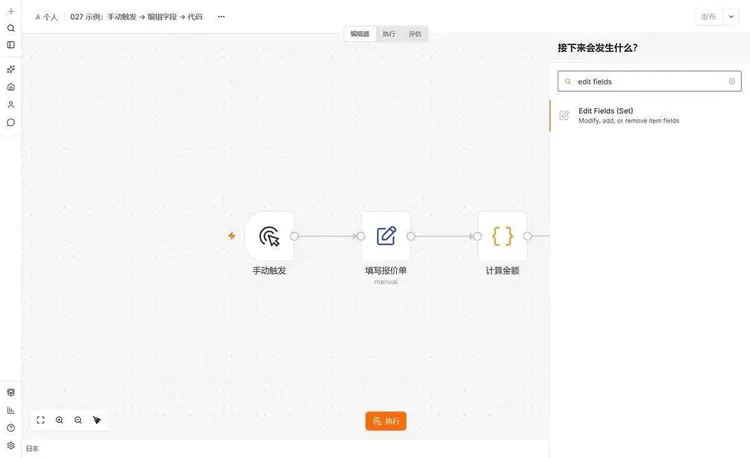
Edit fields: add four fields to one data item
Double-click “填写报价单” to open the panel; only two parameters need to be changed.
Mode Keep Manual Mapping, which is the form-filling method. The other option JSON Output is to write a JSON block directly; it is easier when creating nested structures, but don't use it at the beginner stage.
Fields to Set Add four rows in it. The left of each row is the field name, the middle is the type dropdown, and the right is the value:
| Field name | Type | 值 |
|---|---|---|
| product | String | Vacuum compression bag 60x80cm |
| qty | Number | 200 |
| unit_price | Number | 1.85 |
| freight | Number | 60 |
The type dropdown defaults to "String"; qty, unit_price, and freight must be manually changed to "Number". The UI won't stop you; if you choose wrong, it won't report an error either—it will quietly store 200 as "200". How painful this pitfall is, I'll show you once the calculation is done later.
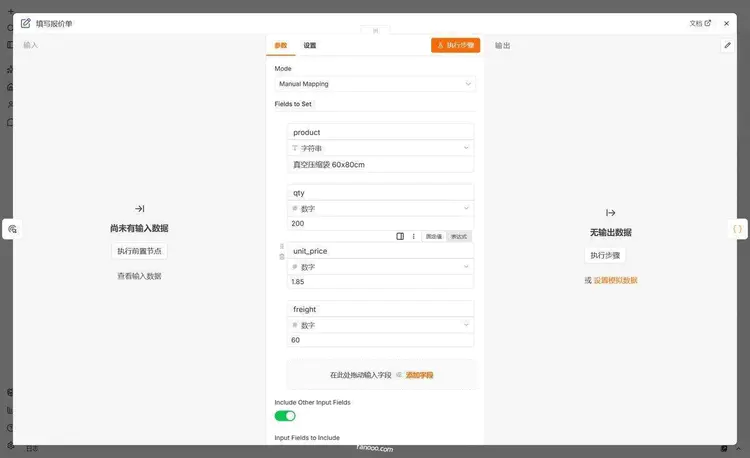
row.unit_price, one character short and it's undefined.The one at the very bottom of the panel. Include Other Input Fields toggle, which is on by default, meaning "fields in the input that I haven't touched are output as-is." The input to this workflow is empty, so it makes no difference whether the toggle is on or off. But for a workflow with data, turning it off is equivalent to cutting off all upstream fields, leaving only the four you filled in manually—when you can't retrieve product in the code at that point, don't assume the code is wrong.
Code node: take one item, calculate once, return one item.
Double-click "Calculate Amount".Mode Keep Run Once for All Items(run once over the entire array),Language Keep JavaScript. Then paste the following block into the editor:
const row = items[0].json;
const amount = row.qty * row.unit_price + row.freight;
const unitCost = Number((amount / row.qty).toFixed(2));

return [{
  json: {
    product: row.product,
    qty: row.qty,
    amount,
    unitCost,
    summary: row.product + ' ' + row.qty + ' 个,含运费合计 ' + amount + ' 元,单个成本 ' + unitCost + ' 元',
  },
}];
I'll go line by line and only mention the parts that can bite.
items[0].json This grabs the first item. There is only one piece of data here, so [0] is enough. For scenarios with multiple items, you need to write items.map(...), that is for the next post.items It's the old way; it still works in 2.x. The new way is $input.first().json, and both produced exactly the same result when I ran them on this instance. I keep items, because under the "run once over the entire array" mode, what you have is the entire array anyway, so this name is more honest.
toFixed(2) It's not for looks. 430 divided by 200 is exactly 2.15, which looks neat; switch it to shipping fee 55, it's 2.175, and the floating-point calculation may produce 2.1749999999999998. Written into a table or sent to a customer, that kind of tail looks bad. The outer layer Number() converts it from a string back to a number—toFixed returns a string; if you don't convert it, unitCost will be left-aligned in the table.
The segment at the end return is the key part.returns an array, with each element wrapped in a json layer. n8n uses this json key to distinguish "this is business data" from "this is a binary attachment". If the format is wrong, the node will just turn red on you.
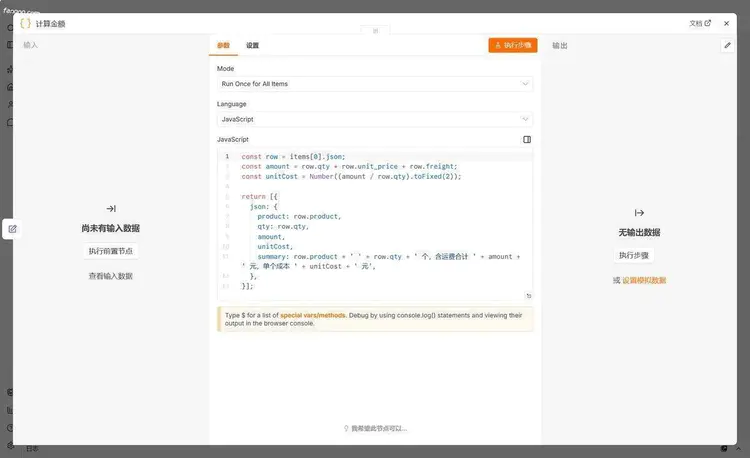
Run it once and check the output
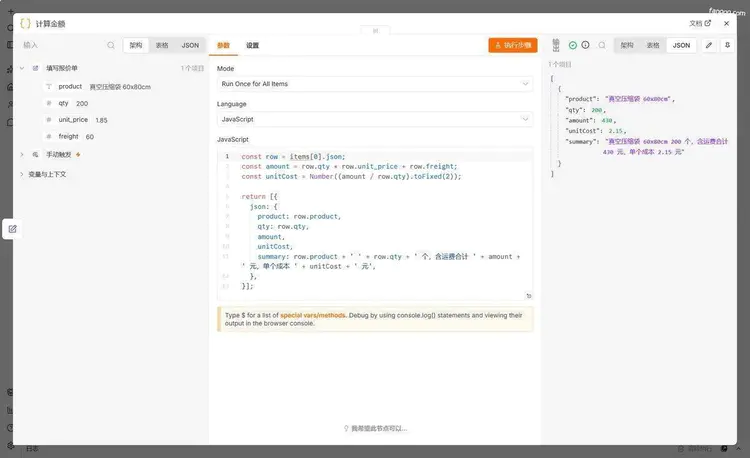
Click the orange "Execute" below the canvas. In a second or two, the borders of the three nodes turn green, each node gets a small check mark in its upper-right corner, and "1 item" is marked in the middle of the connections.
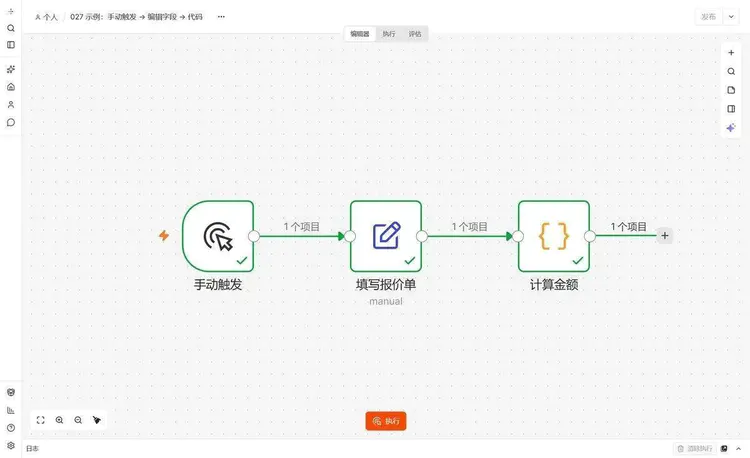
Double-click "Calculate Amount"; in the output area on the right, switch to the JSON tab:
By the way, one thing that is easy to misunderstand: this "Execute" button only runs when you click it. A workflow with Manual Trigger will not start running by itself just because it has been published; it has no mechanism to "run by itself." For scheduled runs, you need to switch to a trigger such as Schedule Trigger.
Appendix: the full workflow JSON
If you don't want to click the nodes, you can import the whole workflow. Copy the block below and press Ctrl+V, and the three nodes will land directly on the canvas. Using the menu also works: in the upper right corner ⋯ → Import → Import from File, first save the content as .json。
I pasted this block into a blank workflow and ran it once: three nodes, two connections, and the positions are all correct; after execution, amount is also 430.
{
  "name": "第一个工作流",
  "nodes": [
    {"parameters":{},"id":"m1","name":"手动触发","type":"n8n-nodes-base.manualTrigger","typeVersion":1,"position":[-368,0]},
    {"parameters":{"assignments":{"assignments":[
      {"id":"a1","name":"product","value":"真空压缩袋 60x80cm","type":"string"},
      {"id":"a2","name":"qty","value":200,"type":"number"},
      {"id":"a3","name":"unit_price","value":1.85,"type":"number"},
      {"id":"a4","name":"freight","value":60,"type":"number"}
    ]},"includeOtherFields":true,"options":{}},"id":"m2","name":"填写报价单","type":"n8n-nodes-base.set","typeVersion":3.5,"position":[-144,0]},
    {"parameters":{"jsCode":"const row = items[0].json;nconst amount = row.qty * row.unit_price + row.freight;nconst unitCost = Number((amount / row.qty).toFixed(2));nnreturn [{n  json: {n    product: row.product,n    qty: row.qty,n    amount,n    unitCost,n    summary: row.product + ' ' + row.qty + ' 个,含运费合计 ' + amount + ' 元,单个成本 ' + unitCost + ' 元',n  },n}];","mode":"runOnceForAllItems"},"id":"m3","name":"计算金额","type":"n8n-nodes-base.code","typeVersion":2,"position":[80,0]}
  ],
  "connections": {
    "手动触发": {"main": [[{"node": "填写报价单", "type": "main", "index": 0}]]},
    "填写报价单": {"main": [[{"node": "计算金额", "type": "main", "index": 0}]]}
  },
  "settings": {"executionOrder": "v1"}
}
How to tell it actually ran successfully
Four checks, all of which you can verify yourself; if any one is missing, it doesn't count as complete.
- All three nodes have green boxes with checkmarks, and both connections are labeled "1 item". If the number is not 1, it means a node in between changed the item count; go back and check.
- In the JSON output of the code node, amount is 430 and unitCost is 2.15.
- You can find this run in the execution history. Manually triggered runs also leave records, so don't assume only scheduled tasks appear in the list.
- Change freight from 60 to 100, run it again, and amount should become 470. Change one input and watch the output change accordingly; this check is stronger than the previous three—seeing 430 only once could be a coincidence.
For the fourth check, I recommend doing it every time. There is a difference between running successfully once and running correctly.
Five errors you will actually hit
1. Code doesn't return items properly
It returned a string. In my actual test, I wrote just one line return "共 430 元";, the node immediately turns red, and this pops up in the lower right corner.
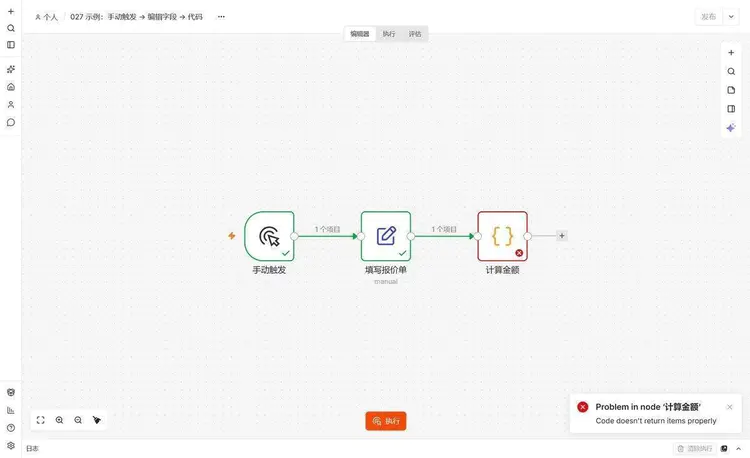
Interestingly,return { amount: 430 } this way of writing that does not wrap it in an array or in jsonworks. The Code node automatically adds the json key and square brackets for you, and the documentation states this behavior. So this error is not "the format is not standard enough"; it is "what you return is not data at all"—strings, numbers, and null cannot be filled in.
2. items is not defined [line 1]
Mode is selected as Run Once for Each Item, while the code still uses items. In per-item mode, n8n feeds in only one item at a time, and the current one is called $json, to get the count, write $json.qty. The difference between the two modes is one sentence: run the whole array once, or run each item once. Before writing code, take a look at this dropdown.
3. Only one "Manual Trigger" node is allowed in a workflow
Stuffing another trigger into a workflow that already has a trigger. This time I made an even dumber mistake: I pasted a piece of JSON with a trigger into the canvas of an existing workflow, and "Unable to insert node" popped up, followed by this sentence. To try it for comparison, open a new workflow first and then paste.
4. Output all undefined, with no error
The field in Edit Fields is called unit_price, but in the code it is written as row.unitPrice. The capitalization and underscore differ by one character; n8n does not care, and JS does not care either, so the result is that undefined is passed all the way down, and the summary shows "total including shipping undefined 元". This kind of error is the hardest to track down because it does not turn red or make a sound; only the number is wrong.
5. amount becomes "37060"
The field type was set to string. 60 and "60" look the same in JS, but + when it hits a string, it switches to concatenation: 370 plus "60" gives "37060", not 430.
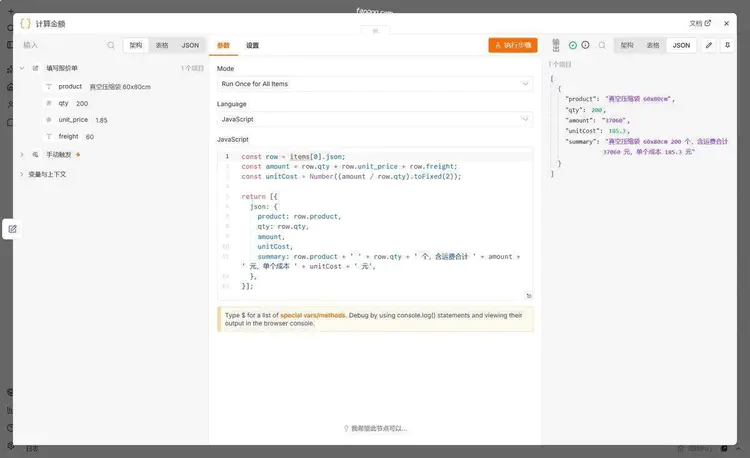
The fifth item is the most valuable one in this post. The first time I got this number, I stared at 37060 for half a minute before realizing it was string concatenation—because the code looked completely fine; the problem was in the type dropdown of the previous node.
The three boundaries of the Code node
The Code node runs in n8n's own process, but has a sandbox: it can't read local files or send HTTP requests. To touch files, use the Read/Write File From Disk node; to send requests, use the HTTP Request node. This isn't a defect; it keeps "how much a casually pasted piece of JS can do" to a minimum.
But there are three things it can't block that you have to manage yourself.
Don't casually paste workflow JSON from others.Pasting it in means executing JS written by someone else on your own instance. On my instance, pasting JSON drops directly into nodes, with no confirmation popup and no asking about the source. If you really want to try it, first throw it into an empty test instance, review the code, and then decide whether to run it.
Don't hardcode secrets in code.A workflow can be exported in full, sent to colleagues, and pasted into a group chat. An api key hardcoded in code will travel with the JSON. Put it in a credential node and let n8n store it encrypted.
Self-hosting can install third-party npm packages.It's off by default; you have to manually enable the environment variable. Enabling it is equivalent to opening a path for arbitrary code execution in the Code node. For a single-user instance, do as you like; for a shared instance, I recommend keeping it off at all times.
Summary
Three nodes, one chain: the trigger creates data, Edit Fields fills in data, and Code calculates data. What you really need to remember isn't how to click through these three nodes, but the "array wrapping json" shape. Later IF, Merge, loops, and error branches are all variants of this shape.
Don't use code if you don't have to. This quote can also be calculated with Edit Fields plus expressions,{{ $json.qty * $json.unit_price + $json.freight }} done in one line and with one fewer node. I ultimately chose Code because later I need to calculate quotes under three different pricing bases at the same time, and stacking expressions in nodes is harder to maintain than writing code. If you're only calculating one number, don't bring in code.
For that type pitfall, I suggest you now deliberately change freight to a string and run it once, and watch 430 turn into 37060 with your own eyes. Reading the text ten times is not as good as making the mistake yourself once.
Moving on
The previous post isHow to Choose Between n8n, Zapier, and Make. What nodes, connections, and executions look like in JSON,this posthas broken it down. If the service won't start or the port conflicts, seeHow to Diagnose n8n Startup Errors and Port Occupancy. For installation, seethis post, if you are unfamiliar with the interface, seethis post. The table of contents for the entire course is athere。
References
- Manual Trigger: runs only when you click execute, does not provide automatic triggering; only one is allowed per workflow
- Edit Fields (Set): two modes, Manual Mapping and JSON Output; the role of Include in Output
- Code: the difference between the two Modes, language options, and the inability to access the file system or make HTTP requests
- Understand n8n's data structure: the origin of arrays wrapping json, and notes on the Code node automatically adding json keys
- Use built-in shortcuts:Built-in variables and methods in expressions, and which ones are not applicable in the Code node
Last updated: October 28, 2026, using n8n 2.43.7.