What Is Docker: The Minimum Necessary Knowledge for n8n Beginners


The place where installing n8n most easily gets stuck is not n8n itself, but the Docker in front of it. Copy the five lines of commands from the tutorial, get the container up, click twice in the UI and it works; come back the next day and all workflows are gone—the only reason is that one of those five lines is missing a -v。
This article only covers the part of Docker you need for installing n8n: image, container, volume, port. Four words. As for network modes, Compose, and building images yourself, we’ll talk about them when you actually need them; learning them in advance will just be forgotten.
There is only one prerequisite: you can type commands in a terminal and know what a "port" is. Having never touched Docker makes no difference at all.
- Why n8n ultimately ends up installed in Docker
- Four words: image, container, volume, port
- Install Docker first
- Bring up an n8n in three steps
- How to tell it is installed properly
- Which file is the data actually in
- Six errors you will actually encounter
- A few security matters related to n8n
Why n8n ultimately ends up installed in Docker
The official installation page offers several paths: install globally with npm, run directly with npx, Docker, and the desktop version. The first two are the lightest, one npm install -g n8n line and that’s it; the problem is that it hard-binds n8n to the Node on your machine. n8n is picky about Node versions; the documentation says the range is 20.19 to 24.x. If one day you upgrade Node to 26 for another project, n8n will stop working along with it, and the error message may not even be in plain language.
Docker takes a different approach: it packs n8n together with the Node, system libraries, and time zone data it needs into one package, and this package runs the same on anyone’s machine. I specifically went into the 2.43.7 image and took a look: Node is 26.7.0, and the base image is Alpine. None of this has anything to do with whether your host machine has Node 18 or 26 installed.
Let’s also be clear about the cost. You have one more layer to maintain: the image takes up disk (2.43.7 is 1.8 GB after extraction), when something goes wrong you have one more place to check logs, and upgrading changes from "npm update" to "swap the image and rerun". I think it’s worth it—for the upgrade itself, change the tag, delete the container, rerun, three minutes, and you don’t have to worry about the Node version.
If you’re only playing around locally for two days, I don’t recommend using Docker; npm is faster. If you plan to run it long term, or need to let colleagues use it, go straight to Docker and don’t take detours.
Four words: image, container, volume, port
Image
An image is a read-only package built by someone else, containing a complete file system that can run n8n.n8nio/n8n is the name,2.43.7 is the tag. A bunch of tags hang under the same name, and one tag corresponds to one version.
The tag is written as latest, meaning "latest stable version". In production I don’t recommend writing it this way: one day the container restarts and pulls the new image along the way, behavior changes, and you don’t even know where to start checking. Hard-code the version number and treat upgrading as a separate task.
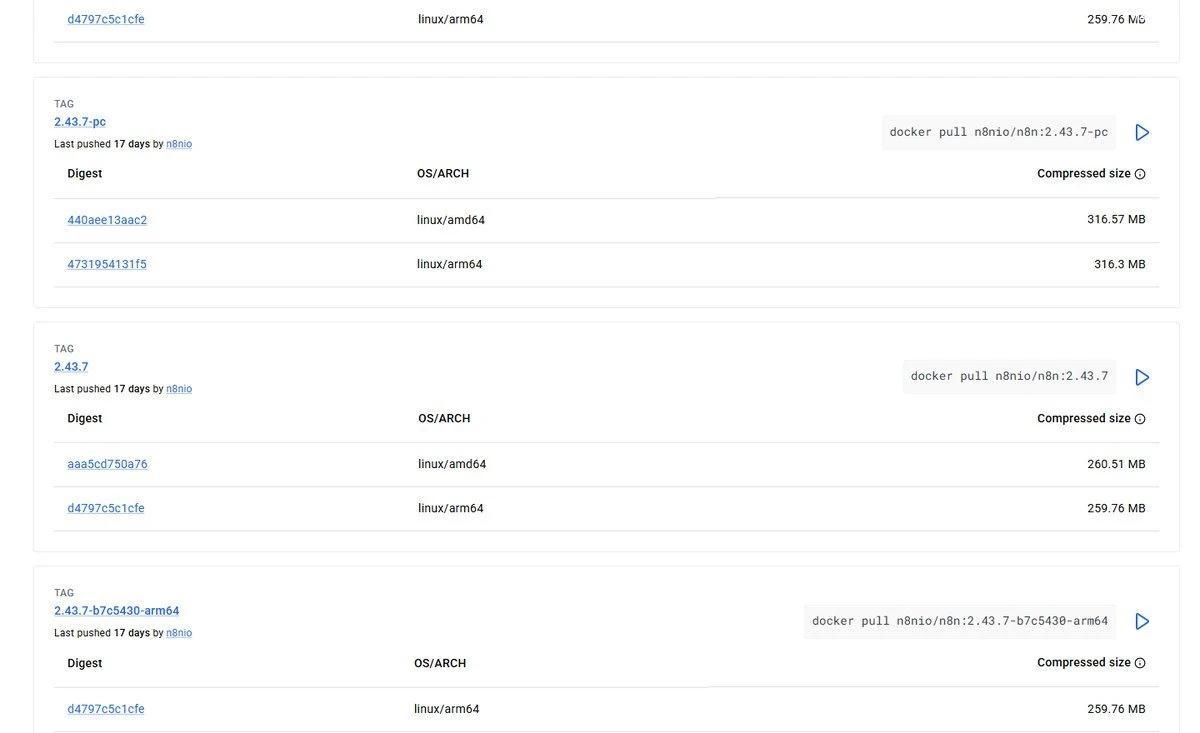
docker pull It's what you need to typeContainer
An image is dead.docker run The process that runs afterward is called a container. A container equals an image plus a writable layer; anything you change inside is written to this layer. Delete the container, and this layer disappears with it—this sentence is the source of all the pitfalls later.
卷
So n8n's data cannot be placed in the container. A volume is a directory on the host machine, managed by Docker and mounted into a path in the container. The path n8n expects is /home/node/.n8nwhere the database, encryption key, and event log are.
I counted: after an owner account was just created and a workflow had run once, the .n8n directory is 5.5 MB. Of that, database.sqlite 1.5 MB, plus a 4 MB -wal file. That's all there is, and losing it means starting over from scratch.
Port
-p 5678:5678The left of the colon is the host port, and the right is the port inside the container. n8n in the container always listens on 5678 (unless you change N8N_PORT), and if you want to change the number on the outside, only change the left side:-p 8080:5678。
Writing it as 127.0.0.1:5678:5678 binds only to the local machine, and the outside cannot connect in. I use this form throughout testing so I don't forget to close it.
Install Docker first
The easiest way on Ubuntu / Debian is the official script:
curl -fsSL https://get.docker.com | shIt adds the official repository, installs docker-ce, and comes with the compose plugin. If you mind “feeding what curl outputs directly to sh,” just take the official apt repository route; the steps are in the Docker documentation, just longer.
After installation, run two commands to check versions:
docker --version
# Docker version 29.1.3, build 29.1.3-0ubuntu3~24.04.2
My 232 here is Ubuntu 24.04 + Docker 29.1.3. You can use 24 or 25; the commands are no different.
Docker requires root or sudo by default. Some say adding the user to docker the group removes the need for sudo; that's true, but it is equivalent to giving that user root privileges—the reasoning is in the security section.
Start an n8n in three steps
Step 1: Create a volume
docker volume create n8n_data
# n8n_data
If the volume name is echoed back, it's created. It's also fine not to create it in this step,docker run write in -v n8n_data:/home/node/.n8n will be created automatically—but create it once first, so you can confirm it's really there.
Step 2: get it running
docker run -d
  --name n8n
  -p 127.0.0.1:5678:5678
  -e TZ=Asia/Shanghai
  -e GENERIC_TIMEZONE=Asia/Shanghai
  -e N8N_ENFORCE_SETTINGS_FILE_PERMISSIONS=true
  -v n8n_data:/home/node/.n8n
  n8nio/n8n:2.43.7
Compared with the original command in the official docs, I changed two things.
One change is adding -d. What the docs give is docker run -it --rm, which runs in the foreground; once you close the terminal or press Ctrl+C, n8n stops;--rm it also deletes the container along the way. This is clean for debugging, but not for long-term running; add -d to let it stay in the background.
The other change is adding before the port 127.0.0.1:. The docs say -p 5678:5678, which means binding to 0.0.0.0; as long as the machine has a public IP, anyone who scans 5678 can see your login page. On my 232, 5678 is occupied, so I actually use -p 127.0.0.1:5681:5678, and the mapping is the same.
Both timezone variables must be provided.TZ controls the container's system time,GENERIC_TIMEZONE controls how n8n itself calculates time; Schedule Trigger recognizes the latter. If you only set TZ, scheduled tasks still follow UTC, and what you think is 9 a.m. becomes 17:00 Beijing time. This kind of thing leaves not a single exception in the logs.
Step 3: check the logs and wait for it to come up
docker logs -f n8nThe first startup runs dozens of database migrations,Starting migration ... 和 Finished migration ... alternating, which is normal. Wait until these two lines appear:
Version: 2.43.7

Editor is now accessible via:
http://localhost:5678
That http://localhost:5678 is a container-internal address and cannot be opened in a browser. What you can open is http://服务器IP:5678, or on the local machine http://127.0.0.1:5678. This line has fooled many people, including me on my first run.
When 2.43.7 starts, it also spits out five deprecation warnings, talking about N8N_RUNNERS_MODE、N8N_UNVERIFIED_PACKAGES_ENABLED These default values will be changed later. They do not affect use; they pave the way for future versions. There is also another line Failed to start Python task runner in internal mode. because Python 3 is missing from this system.—Python is not installed in the image; if you only use the JS Code node, you do not need to deal with it at all.
After creating the account, you are in. This step is meaningless if it is not written to the volume—the verification below will explain how to confirm it actually persists to disk.
How to determine it is installed properly
Four checks, all done in the terminal.
docker psin which STATUS isUp, PORTS has mappings, and IMAGE is the tag you specified.curl -s http://127.0.0.1:5678/healthzreturns{"status":"ok"}. This endpoint only indicates that the process is alive.docker exec n8n n8n --version回2.43.7, matching the tag you provided.docker restart n8n, wait a dozen or so seconds and then open the page again; it should no longer ask you to create an account.
The 4th check is the easiest to overlook and also the most valuable. It verifies two things at once: the volume is mounted correctly, and the data is really outside the container.
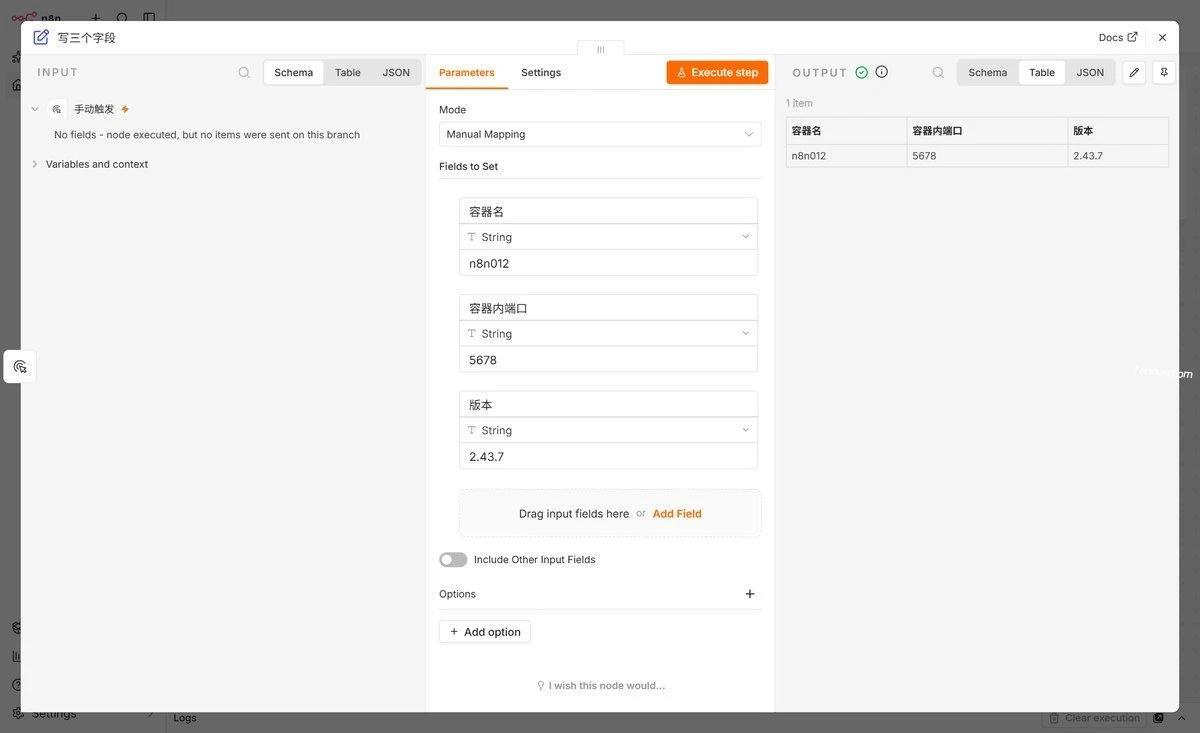
When I took this screenshot, I also took a quick look at the one in the container .n8n, 5.5 MB, matching what was mentioned above. If your du -sh comes out as a few hundred K, most likely the data was written to the container's writable layer, and the volume was not mounted.
Which file is the data actually in
After the volume is created, Docker determines the actual location on the host; use this to check:
docker volume inspect n8n_data
# [
#     {
#         "CreatedAt": "2026-11-02T09:28:41+08:00",
#         "Driver": "local",
#         "Mountpoint": "/var/lib/docker/volumes/n8n_data/_data",
#         "Name": "n8n_data",
#         "Scope": "local"
#     }
# ]
"Mountpoint" is its real location on the host. On this machine, I moved Docker's data root to /data/docker, so what I see is /data/docker/volumes/n8n_data/_data; on a default-installed machine, it is the above /var/lib/docker/.... Use your own machine's output as the reference.
Go into the container and look; this is what it looks like in n8n's eyes:
docker exec n8n ls -la /home/node/.n8n
# -rw-r--r-- 1 node node 1519616 Nov  2 09:29 database.sqlite
# -rw-r--r-- 1 node node   32768 Nov  2 09:38 database.sqlite-shm
# -rw-r--r-- 1 node node 4136512 Nov  2 09:37 database.sqlite-wal
# -rw-r--r-- 1 node node    7972 Nov  2 09:37 n8nEventLog-1.log
# -rw-r--r-- 1 node node     526 Nov  2 09:38 n8nEventLog.log
Workflows, execution records, and credential ciphertext are all in database.sqlite inside. The encryption key used to decrypt credentials is in the same directory; by default, it is config file, automatically generated on first startup.
So backing up n8n means two things: this directory and the version number. If you back up only sqlite and not the key, after restoring on another machine, all credentials are garbled.
To switch to a host directory you specify (for example /data/n8n), replace -v n8n_data:/home/node/.n8n with -v /data/n8n:/home/node/.n8n and that’s it. This is a “bind mount”; the directory is under your control, backups are more intuitive, and the cost is that you have to sort out permissions yourself—the next pitfall is exactly this.
Six errors you will actually encounter
1. Forgetting -v means deleting the container equals deleting the database
I ran a comparison with two containers, on the same machine and using the same image: the one with -v n8n_data:/home/node/.n8n it—after restart, the API returns “whether to show first-time setup” as false; the one without -v it—the other one, the same API returns true—it has turned back into an empty instance.
The whole process reports no error and no warning. You just open it one day and find the workflows are gone.
How to tell:docker inspect n8n, scroll up and look for "Mounts" that section; if it contains "Destination": "/home/node/.n8n" then it is mounted; if the whole section is empty, that is dangerous.
2. Mounting a host directory reports EACCES
You want to use a bind mount, create the directory, mount it directly, and then:
Error: Failed to load command "start"
Error: EACCES: permission denied, open '/home/node/.n8n/config'
It was still printing migration logs normally, then suddenly died here. Because n8n in the image is not root; it is a user with uid 1000 node(docker exec n8n id can see uid=1000(node)), while you mkdir the directory created by you is owned by root, 755, and others cannot write to it.
Just change the owner:
chown -R 1000:1000 /data/n8nAfter changing it, rerun with the same directory and the same command; 200, it starts normally, and the files really land in the host directory. It doesn't matter who uid 1000 is on the host; inside the container it is recognized as 1000.
3. Port is already in use
docker: Error response from daemon: failed to set up container networking:
driver failed programming external connectivity on endpoint n8n
(...): failed to bind host port 0.0.0.0:5678/tcp: address already in use
This means someone is already using port 5678 on the host, and it has nothing to do with the container internals. First check who it is:
ss -ltnp 'sport = :5678'A common case is that your previous n8n container is still running,docker ps you can see it. Or the old container was deleted but not cleaned up completely; the simplest is to switch to another port and get it running first.
4. Access via IP + http, and after logging in it jumps back to the login page
The page opens, the username and password are correct, clicking login gives no error, and then the page returns to the login box. It looks like a wrong password, but it is actually a cookie issue.
n8n's login cookie carries Secure flag (N8N_SECURE_COOKIE by default it is true), and browsers only allow it to be stored under HTTPS. When you access via http, the server still returns 200, but the browser directly discards this cookie, so the next request has no login state.
Two approaches: the proper way is to put an Nginx layer in front and add a certificate; for temporary debugging on the internal network, add -e N8N_SECURE_COOKIE=false, and remember to remove this line after debugging. Don't treat it as a long-term configuration—that would be letting your username and password run over a plaintext link.
5. Close the terminal, and n8n stops with it
That command in the docs docker run -it --rm run it, and Ctrl+C ends it. It is not a background service; it is a foreground process in your terminal.
补 -d Rerun it; for one that is already running,docker start n8n you can also bring it back, but that container has already --rm been deleted; if so, you can only rerun it docker run—the data is in the volume and is still there.
6. Using latest, and one day the behavior changed
No errors, no alerts; it's just that after a restart one day, the node's default values, UI, and even a parameter name changed. The reason is that you pulled a new version.
Pin the version number, and treat upgrading as a serious matter: back up the volume first, then change the tag, and after it starts, run two key workflows to check the results. The upgrade itself has little technical complexity; the trouble is all in "not knowing what changed".
A few security matters related to n8n
Don't expose 5678 directly to the public internet.n8n has a login page, but it is a self-hosted app with no extra protection beyond login, and scanners are looking for this kind of port every day. Binding it to 0.0.0.0 with no reverse proxy and no HTTPS is like hanging your house key at the front door. The setup I used in testing -p 127.0.0.1:5678:5678 has already blocked external access.
docker The group is equivalent to root.Anyone who can / mount it into a container can modify any file on the host. Think carefully about this before granting permissions to colleagues.
Treat volumes as keys.The one inside database.sqlite stores the ciphertext of all credentials, and the key for decryption is in the same directory. Whoever copies both together gets the tokens for all your third-party accounts in plaintext. Where you put the backup matters more than making the backup.
Don't put passwords on the command line.docker run -e DB_PASSWORD=xxx will remain in docker inspect the output, and anyone who runs it can see them. To pass sensitive values, use an env file, or _FILE the set of variables with that suffix.
Summary
Remembering four words is enough to get it running: an image is a package, a container is a running package, a volume is the space outside the package, and a port is the house number.
The only place where installing n8n really goes wrong is: the volume is not mounted. It doesn't report an error, and you won't notice immediately; by the time you notice, the workflow is already gone. So the first thing after installation is docker restart once, to see whether the data is still there.
The rest is a matter of proficiency. Once you're used to it, you'll find that Docker's biggest benefit is not "cross-platform" but "if something goes wrong, you can delete it and start over in one go"—the data is in the volume, and containers are disposable anyway.
The previous post isHow to check n8n startup errors and port usage, where that post covers the case where it won't start. The table of contents for the whole series is athere, and I have organized the failure-related ones separately atTroubleshootingpage.
References
- Install with Docker: official
docker runcommands,docker volume create、/home/node/.n8nthe volume description, and the steps to update the image - Install using Docker Compose: the compose version configuration,
5678:5678that comment says “the only port that should be exposed externally” - Deployment environment variables:
N8N_PORTdefault 5678,N8N_LISTEN_ADDRESSdefault::、N8N_USER_FOLDER与N8N_ENCRYPTION_KEY - Security environment variables:
N8N_SECURE_COOKIEdefaulttrue、N8N_ENFORCE_SETTINGS_FILE_PERMISSIONSdefaultfalse - Docker volumes: the volume resides on the host's
/var/lib/docker/volumes/<名字>/_data, and the difference between it and bind mounts - n8nio/n8n tag list: one tag per version, where you can find the image digest and compressed size
- Install Docker Engine on Ubuntu: the complete steps for the official apt repository; take this route if you don’t want to use the one-click script
Last updated: November 2, 2026, using n8n 2.43.7.